
To learn how to create connections in FME Form, explore these resources:
After completing this lesson, you’ll be able to:
In this lesson, you will:
After completing this lesson, you’ll be able to:
In this lesson, you will:
Connections are secure, reusable containers that store connection parameters. FME has two types of connections: database and web connections. You reference connections within workspace readers, writers, or transformers that need to access the data. There are two main advantages to using connections:
When a dataset's source data is a database, you store connection parameters as a database connection. The connection parameters include the database server, port number, username, password, and other parameters that vary by database type. Some database types support optional authentication parameters. For example, when creating a Database Connection on FME Flow for PostgreSQL, optional authentication parameters include a CA Certificate, Client Certificate, Client Private Key, and SSL Password.
When the source data for a dataset is a web service, FME can store connection parameters as a web connection. The connection parameters for a web connection include the web service, authentication information, and any other settings specific to the web service and connecting to it. The required information varies depending on the web service type; for example, Google Drive requires different information than ArcGIS Online.
Creating web connections requires an additional step: configuring the underlying web service. You must register your web service with FME to successfully create a web connection to it. Common web services that authenticate using the OAuth standard are already registered in FME (Manage Services > Web Service Definition Templates) for testing purposes. For production environments, you should replace the web service parameters, such as client IDs and client secrets, with your organization's registration parameters rather than the default registration details.
To learn how to create connections in FME Form, explore these resources:
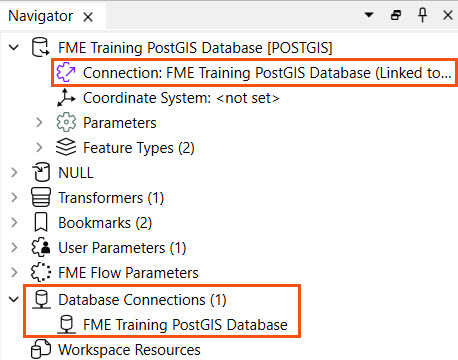
You can publish connections to FME Flow along with the workspaces that use the connection. You may reference and use connections in readers, writers, or transformers. For example, this workspace has a connection to a PostGIS database, as shown in Navigator under reader parameters and in the list of database connections.
You begin the publishing process as usual to publish a connection with a workspace. Then, the second step of the publishing wizard lets you select the connections used in the workspace to upload to FME Flow. If you choose a connection, it will be uploaded to FME Flow and stored in the FME Flow connections store. The connection will be available for this workspace and others with permissions to use it to process your data.
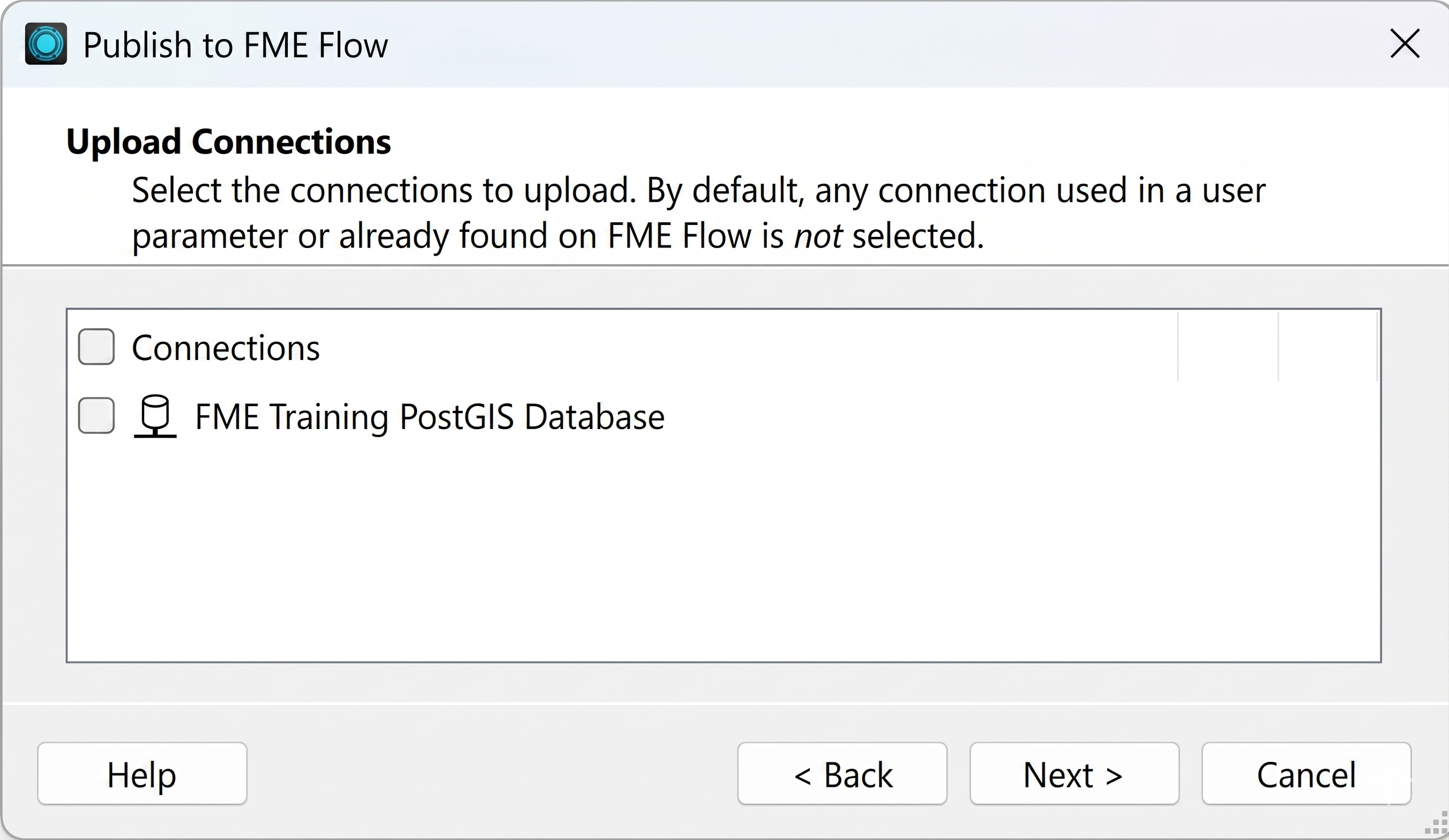
If a connection exists on FME Flow, FME will not select it by default. However, you may choose the connection, which will overwrite the existing one on FME Flow.
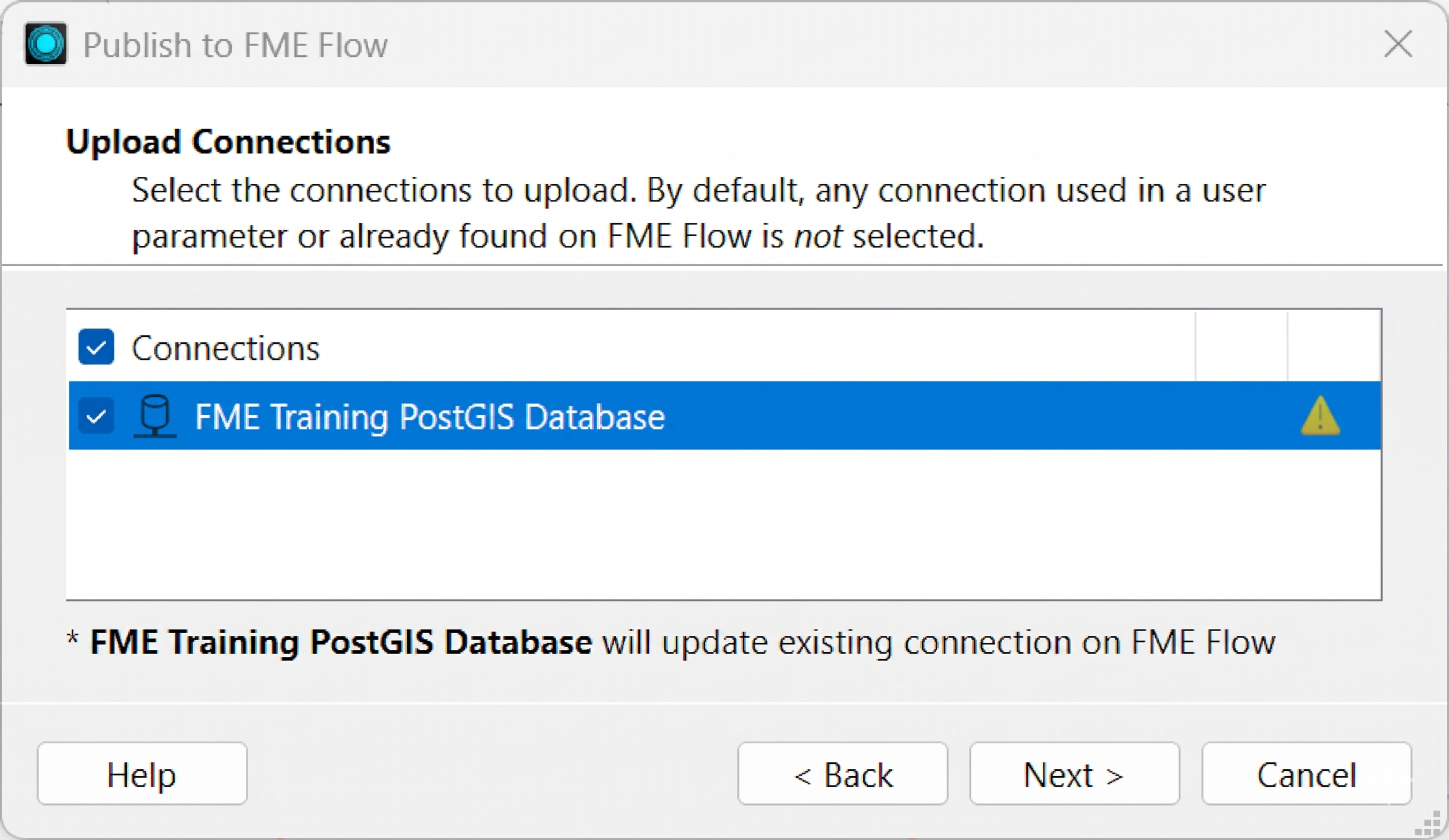
Once publishing is complete, you can see the Uploaded Connections in the translation log's Publish Summary.
Once published, you can see your connection in either the Web Connections or Database Connections list, which you access from Connections & Parameters on the side menu in FME Flow. Each tab lists the connections you have access to on FME Flow. You can also manage your connections by editing, duplicating, sharing, and removing connections. To edit a connection, click it to open its details.
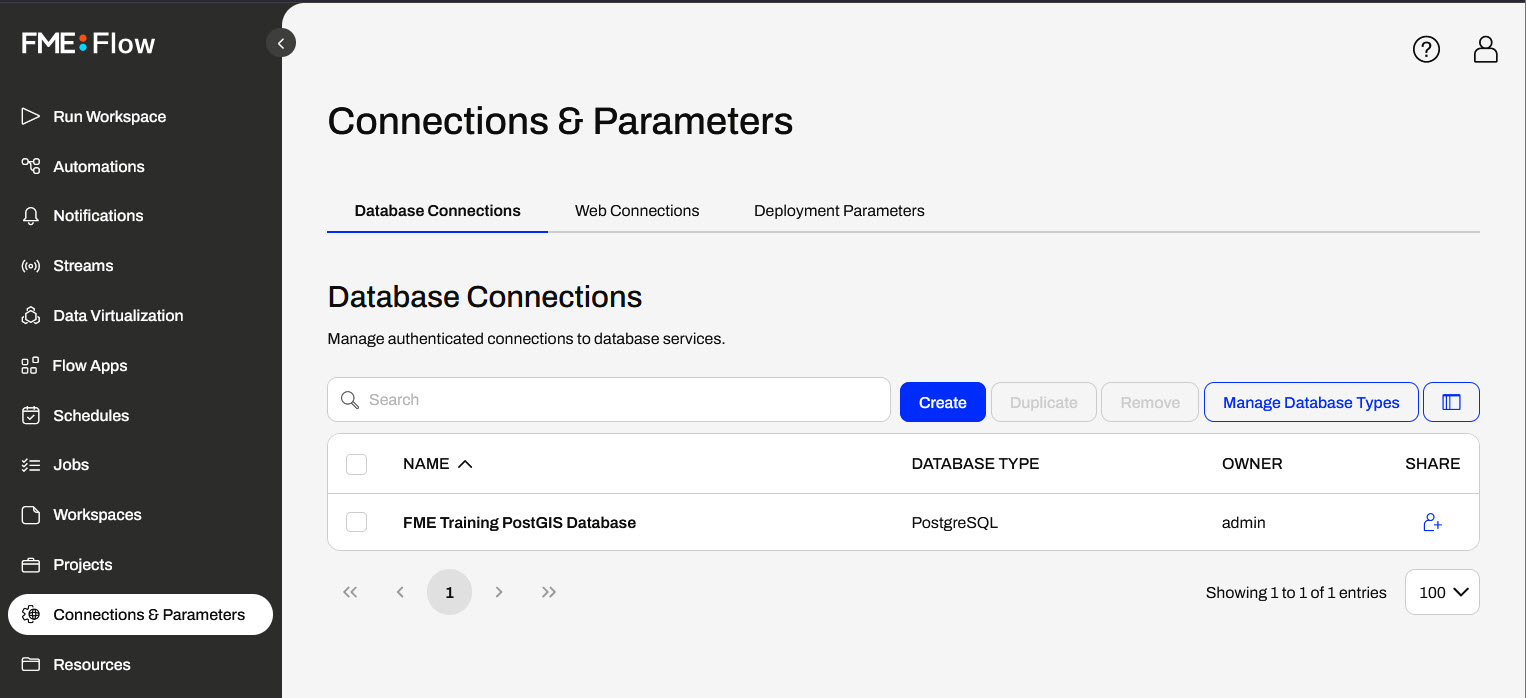
You publish Web Connections and Database Connections with a workspace to FME Flow similarly. However, when you upload a web connection, FME also uploads its associated web service to FME Flow.
For example, when you publish a Google Drive web connection, FME uploads the underlying Google Drive web service that the connection uses to FME Flow. You may manage and inspect web services on FME Flow from Manage Web Services on the Web Connections page.
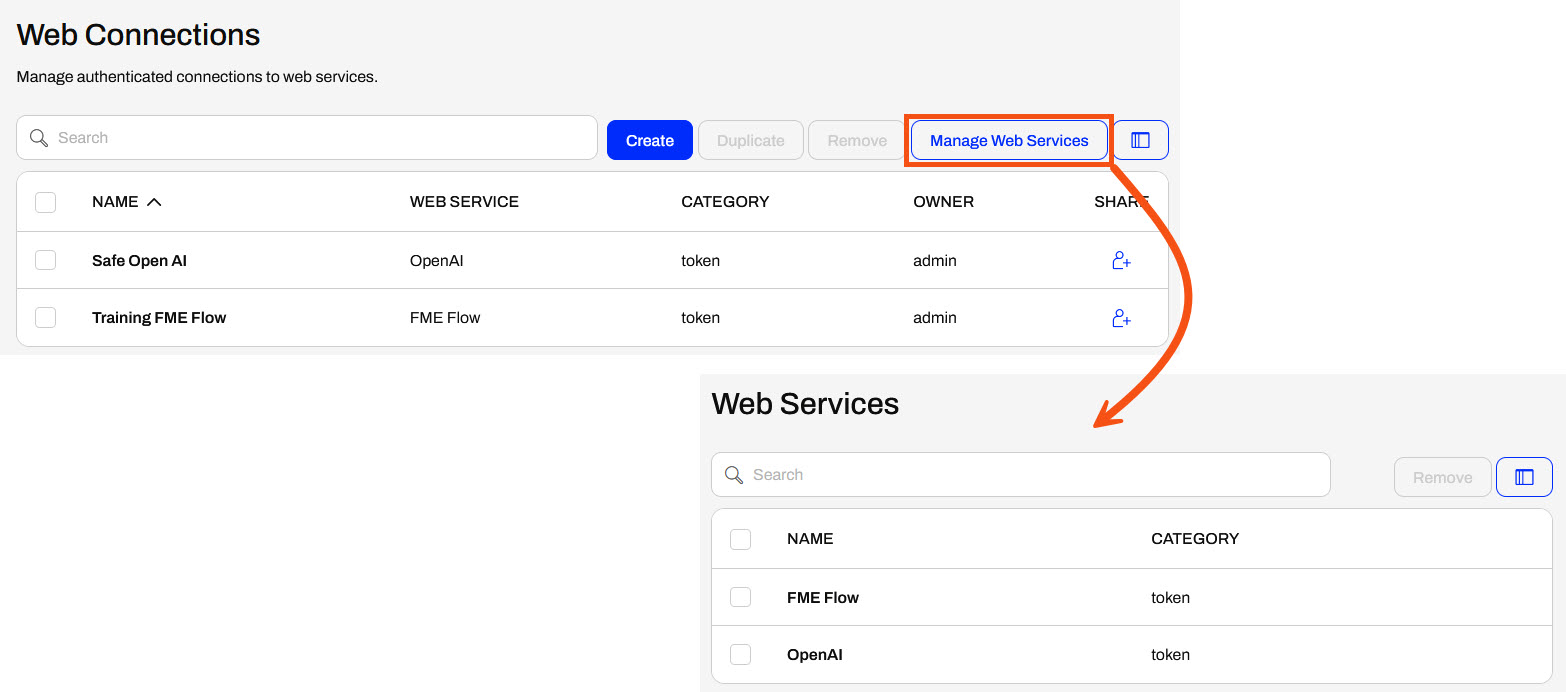
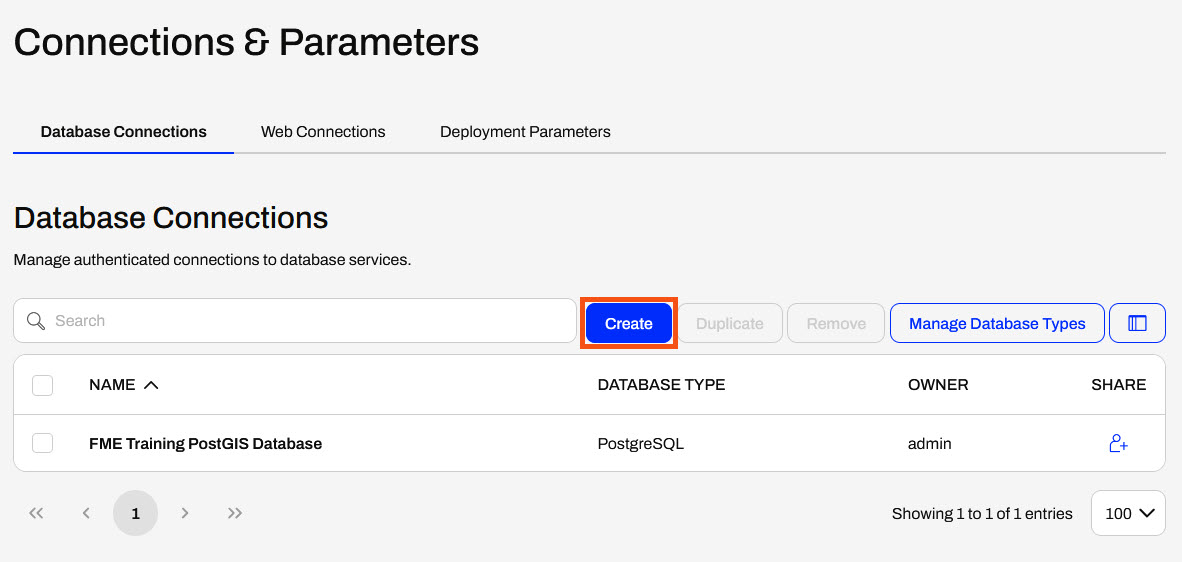
Instead of publishing connections to FME Flow, you may create them directly on FME Flow under Connections & Parameters. The Database and Web Connections pages each include a Create button to create a new connection for that type.
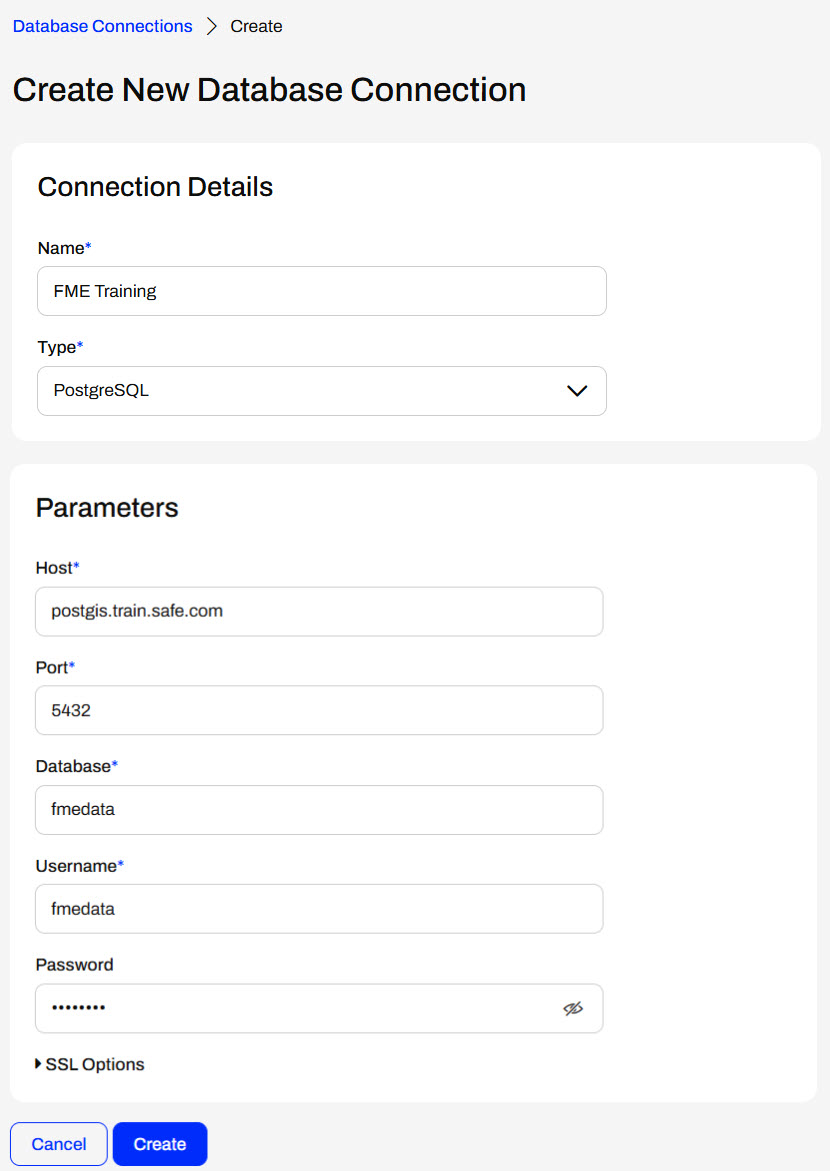
FME Flow maintains a list of database types you may use, just like on FME Workbench. Once you select your database type, you enter the connection parameters and authentication information to create the connection.
To create a web connection directly on FME Flow, you will also need to upload the associated web service for your connection type. By default, FME Flow does not provide the web service templates like FME Workbench does. Therefore, you must upload the web service to FME Flow before creating the web connection.
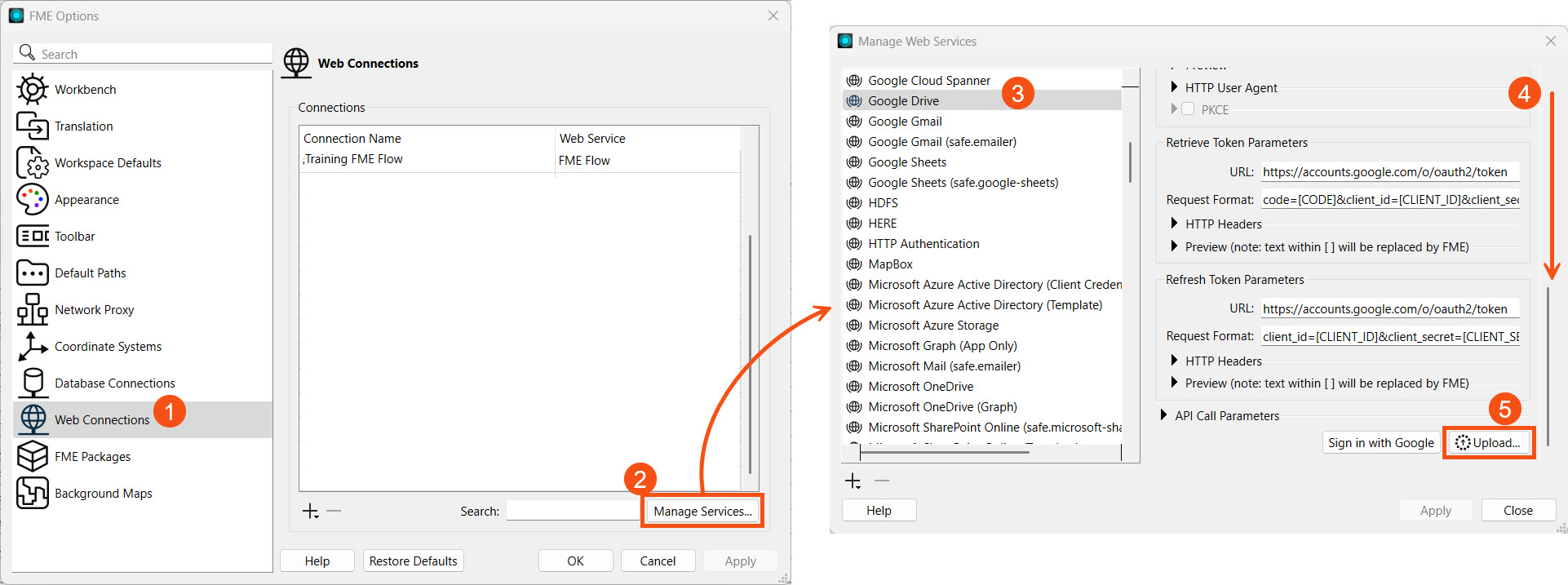
You upload web services to FME Flow directly from FME Workbench with an active connection to FME Flow. In FME Workbench, navigate to Web Connections in Tools > FME Options. Then, select Manage Services... to view and edit the web services. Select your web service, scroll to the bottom of its details, and choose Upload.
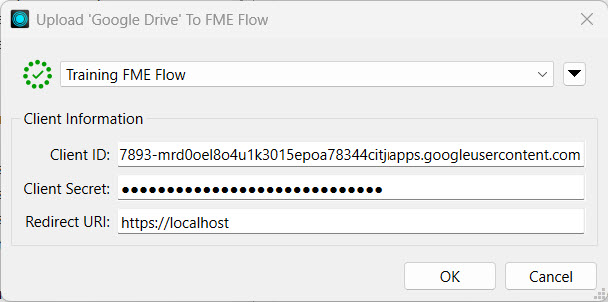
Since Safe Software provides web service definitions for demonstration or testing purposes only, and most web services have separate authorization measures for desktop and web applications, FME will prompt you to enter your organization's Client Information for the web service.
For more information on the authentication parameters for web services, see our Web Connections and FME article.
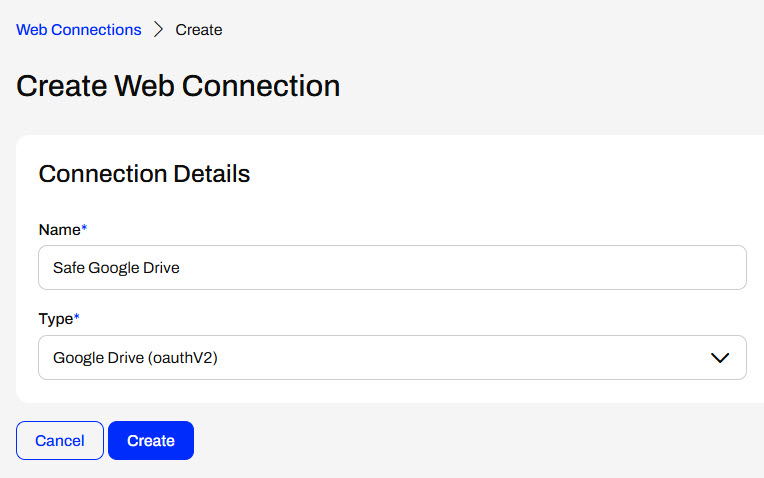
Once you upload the web service, you can create your web connection on FME Flow and select the web service to use.
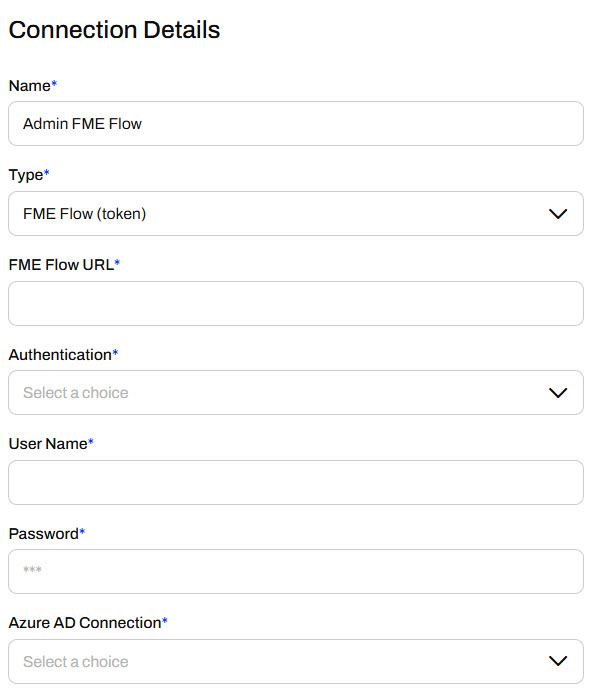
When creating a token-based web connection, additional configuration details will appear after you select the web service.
After creating most OAuth connections, you must return to the connection and authorize it. Select the connection from the Web Connections page to open the details and authorization options.
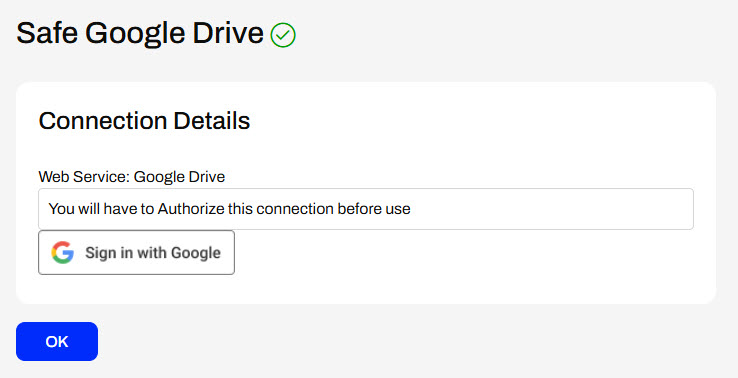
If your workspace connections have user parameters, you can select which web or database connection to use at runtime. The connection parameters are type-specific, meaning FME Flow only displays connections that match the connection type required by the workspace.
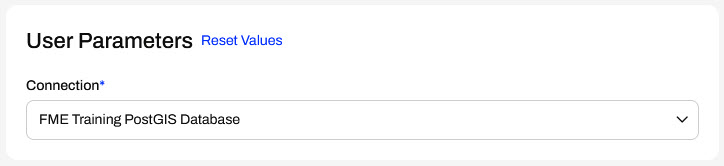
If your workspace does not have a connection user parameter, it will use the value set in FME Workbench, and you cannot alter the selected connection on FME Flow.
FME Flow can act as a central repository for storing database and web connections, allowing teams to share, secure, and manage credentials across FME Form and FME Flow jobs. You may set FME Workbench to use connections on FME Flow when running workspaces. Using FME Flow as the sole connection storage location eliminates credential silos, enables role-based access control, and allows administrators to restrict connection modifications.
You may set FME Workbench to use connections on FME Flow in Utilities > FME Options > Default Paths. You can then set the Connection Storage to be FME Flow.
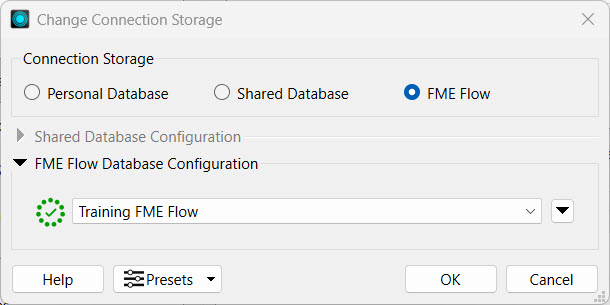
For more information, see our article on Using FME Flow for Connection Storage in FME Form.

Jennifer, a GIS specialist, is setting up a PostGIS connection on FME Flow to use in multiple workspaces. Her current workspace reads parks as points, clips them to neighborhood polygons, and stores each park in its neighborhood. Jennifer needs to add the readers for these datasets from her organization's PostGIS database and deploy this workflow on FME Flow.
For this exercise, follow the steps below to help Jennifer publish and use her database connection on FME Flow.
Open the starting workspace (C:\FMEData\Workspaces\DeployWorkflowsWithFMEFlow\use-secure-connections-on-fme-flow.fmw) in FME Workbench.
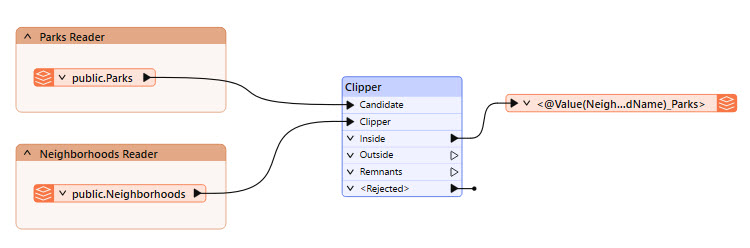
The workspace is supposed to read in Neighborhood polygons and Parks point locations, but you need to add the Readers. For now, there are bookmarks to mark their place. The Clipper clips Parks by the Neighborhood boundaries, and the writer feature type writes out a separate layer of parks for each neighborhood.
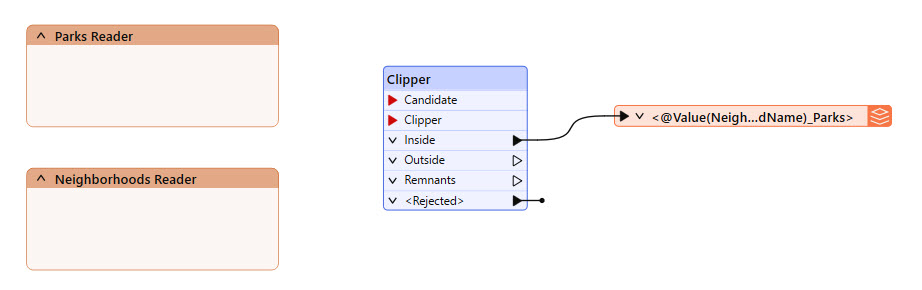
This example workspace uses a NULL writer, which doesn't actually write data.
Add a PostGIS Reader and select the FME Training PostGIS Database connection.
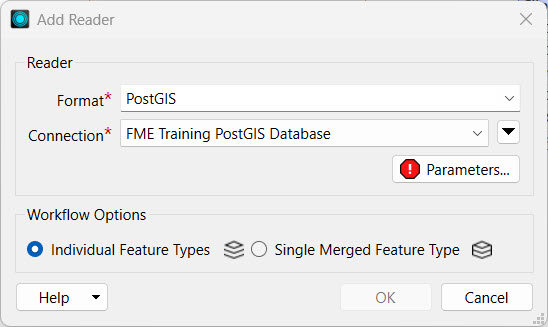
If you're taking a Safe Software-hosted training course, the Database Connection FME Training PostGIS Database should already exist on your training machine.
If you do not have the FME Training PostGIS Database connection, select Add Database Connection from the Connection drop-down options. Fill out the Add PostgreSQL Connection details with the credentials for the FME Training PostGIS database.
Test and Save your new connection.
From the Add Reader window, open Parameters and select the public Neighborhoods and Parks tables.
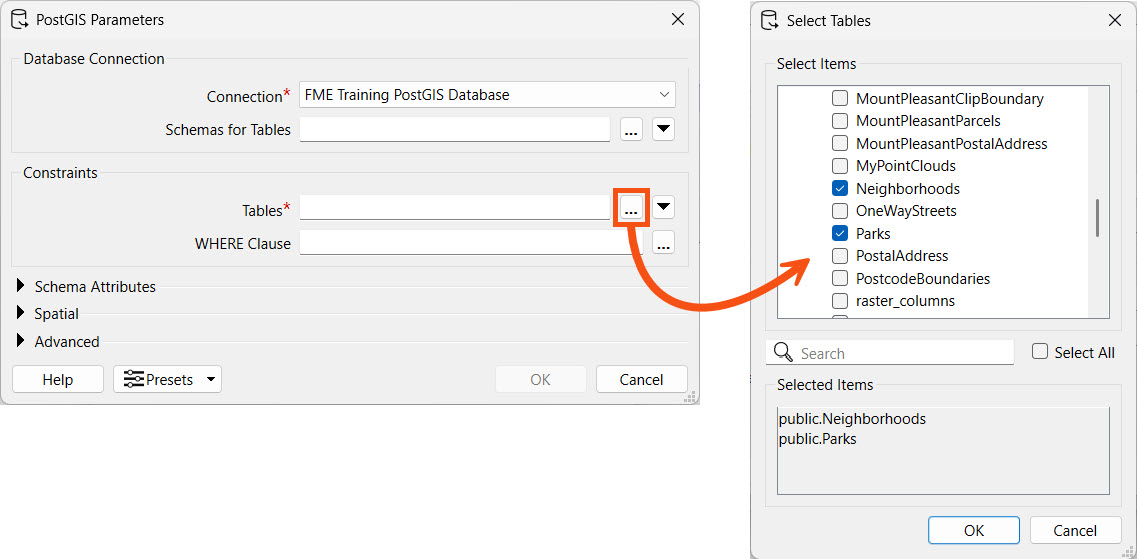
Click OK to select the public.Neighborhoods and public.Parks tables, and then again to close the Parameters and add the Reader Feature Types to the canvas.
Place the reader feature types in their bookmarks and connect them to the Clipper. The Parks reader connects to the Candidate port on the Clipper, and the Neighborhoods reader connects to the Clipper port.
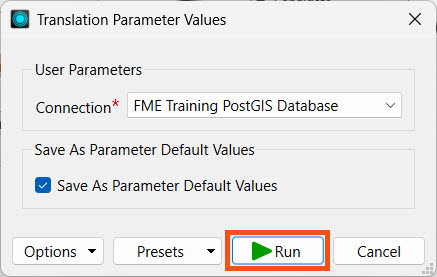
Run the workspace to ensure it works as expected. You will see a Connection User Parameter that allows you to select a different database connection, if desired. However, don't alter it and click Run.
Publish the workspace to FME Flow. Store the workspace in the Training repository.
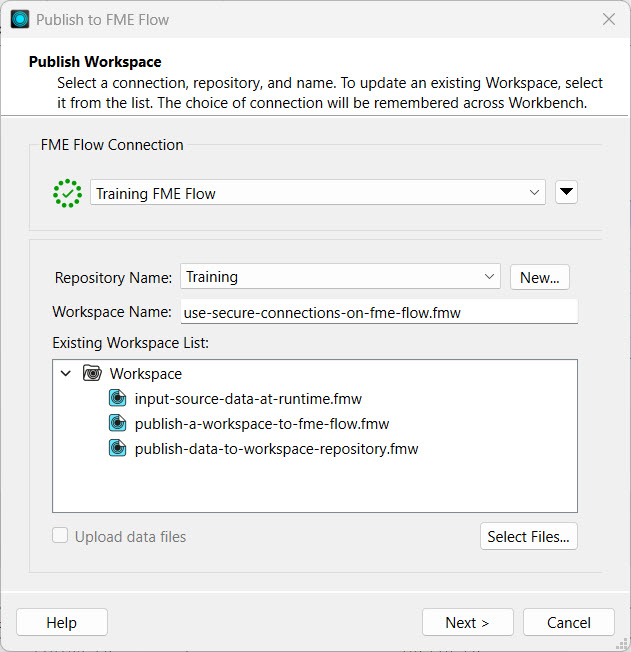
If you are taking a Safe Software-hosted training course, your connection to FME Flow should already exist on your training machine. If you need to create a new connection to FME Flow or create the Training repository, you can review Deploy Workspaces on FME Flow.
Click Next to display the Upload Connections options. Select the FME Training PostGIS Database connection to upload it to FME Flow. You need it on FME Flow to run the workspace.
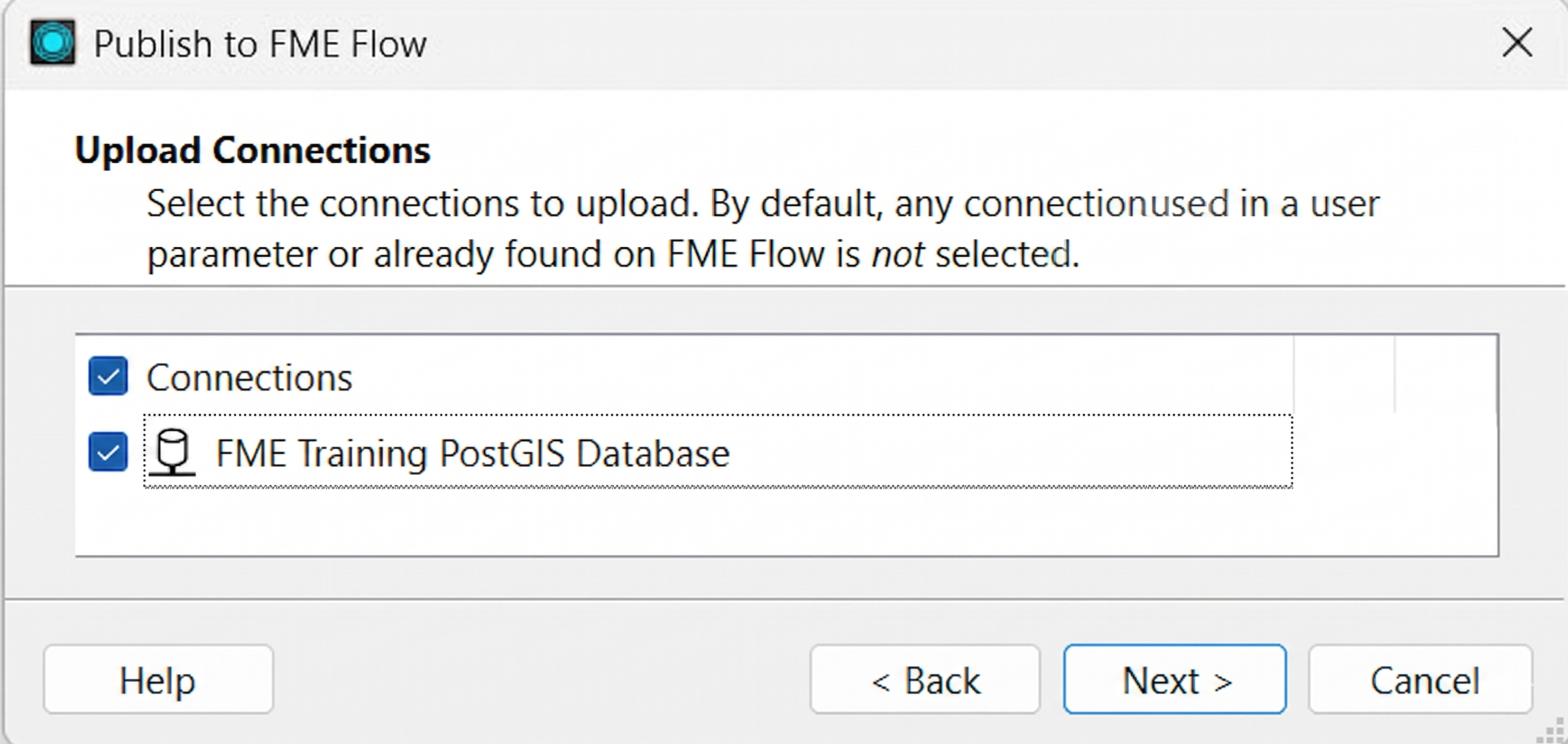
If the database connection already exists on FME Flow, you do not need to publish the connection again unless you have updated the connection details and would like to overwrite the existing one on FME Flow. By default, FME will not select connections that already exist on FME Flow.
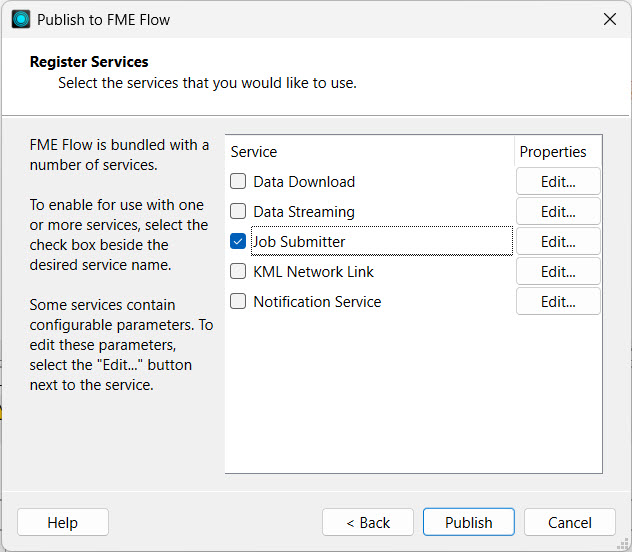
Next, register the workspace with the Job Submitter service and click Publish.
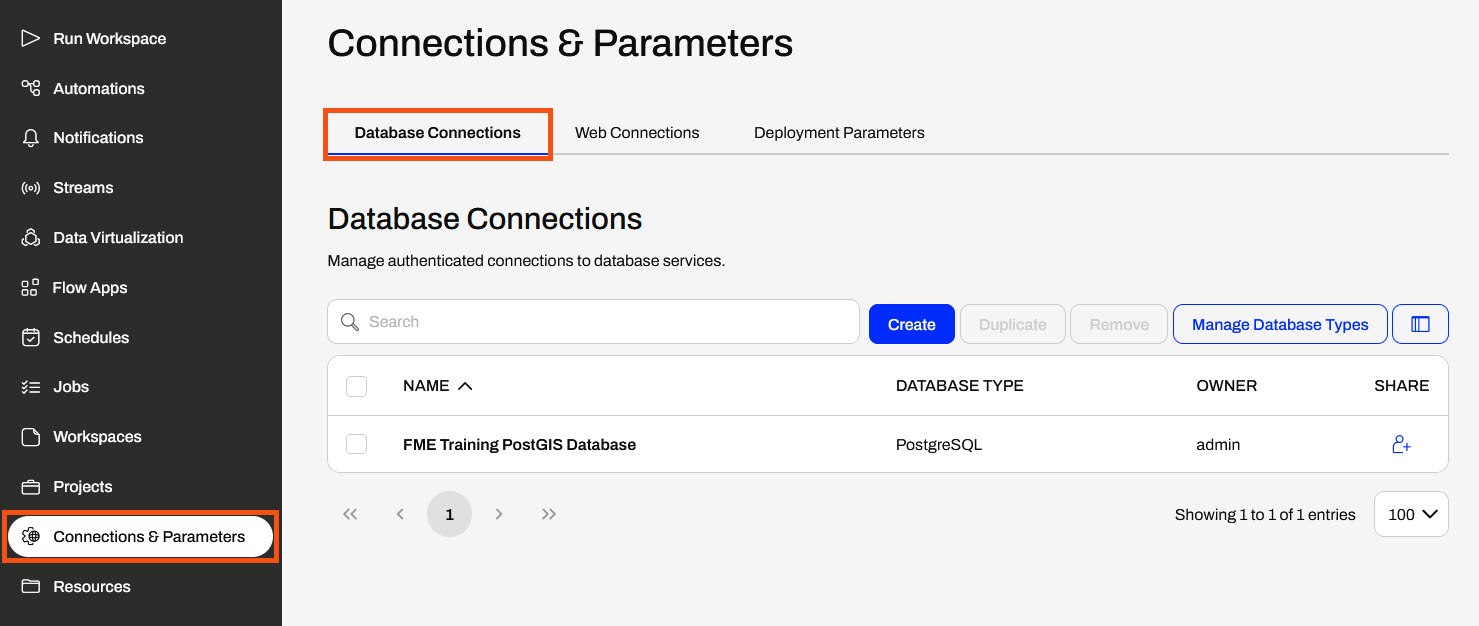
Open FME Flow and navigate to Connections & Parameters > Database Connections. The page shows the database connection you just published with the workspace.
You may click the connection to open its details. You do not need to edit connection parameters; Cancel closes the editing page.
Go to the Run Workspace page and select the workspace you just published.
Under User Parameters, you will see the Connection parameter, which references the database connection. Confirm that the parameter references the FME Training PostGIS Database connection. If you have other PostGIS database connections on your FME Flow, you could select them from the drop-down option. Click Run to run the workspace using the FME Training PostGIS Database connection on FME Flow.
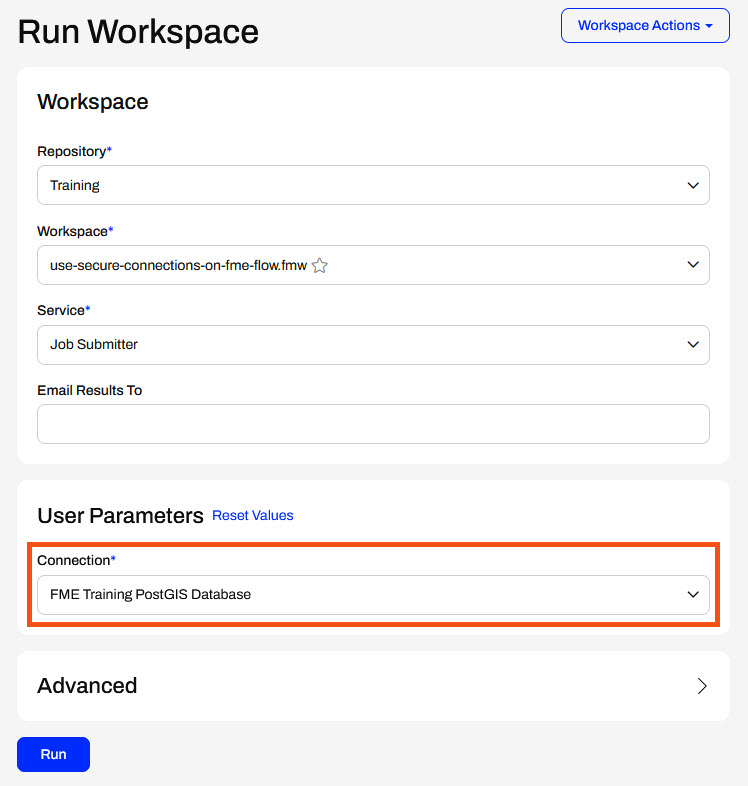
FME Flow uses the database connection to access the Neighborhoods and Parks tables in the PostGIS database to run the workspace.
You published and used a connection on FME Flow, which you can now use in other workspaces that need access to the same database to read the data. Jennifer can reuse this database connection and share the connection with her colleagues to run their workspaces. She could easily update the database connection by overwriting the existing connection on FME Flow when publishing, or she could edit it directly on FME Flow in the Database Connections store.
Connections are secure, reusable containers that store connection parameters. FME has two types of connections: database and web connections. You reference connections within workspace readers, writers, or transformers that need to access the data. There are two main advantages to using connections:
When a dataset's source data is a database, you store connection parameters as a database connection. The connection parameters include the database server, port number, username, password, and other parameters that vary by database type. Some database types support optional authentication parameters. For example, when creating a Database Connection on FME Flow for PostgreSQL, optional authentication parameters include a CA Certificate, Client Certificate, Client Private Key, and SSL Password.
When the source data for a dataset is a web service, FME can store connection parameters as a web connection. The connection parameters for a web connection include the web service, authentication information, and any other settings specific to the web service and connecting to it. The required information varies depending on the web service type; for example, Google Drive requires different information than ArcGIS Online.
Creating web connections requires an additional step: configuring the underlying web service. You must register your web service with FME to successfully create a web connection to it. Common web services that authenticate using the OAuth standard are already registered in FME (Manage Services > Web Service Definition Templates) for testing purposes. For production environments, you should replace the web service parameters, such as client IDs and client secrets, with your organization's registration parameters rather than the default registration details.
To learn how to create connections in FME Form, explore these resources:
You can publish connections to FME Flow along with the workspaces that use the connection. You may reference and use connections in readers, writers, or transformers. For example, this workspace has a connection to a PostGIS database, as shown in Navigator under reader parameters and in the list of database connections.
You begin the publishing process as usual to publish a connection with a workspace. Then, the second step of the publishing wizard lets you select the connections used in the workspace to upload to FME Flow. If you choose a connection, it will be uploaded to FME Flow and stored in the FME Flow connections store. The connection will be available for this workspace and others with permissions to use it to process your data.
If a connection exists on FME Flow, FME will not select it by default. However, you may choose the connection, which will overwrite the existing one on FME Flow.
Once publishing is complete, you can see the Uploaded Connections in the translation log's Publish Summary.
Once published, you can see your connection in either the Web Connections or Database Connections list, which you access from Connections & Parameters on the side menu in FME Flow. Each tab lists the connections you have access to on FME Flow. You can also manage your connections by editing, duplicating, sharing, and removing connections. To edit a connection, click it to open its details.
You publish Web Connections and Database Connections with a workspace to FME Flow similarly. However, when you upload a web connection, FME also uploads its associated web service to FME Flow.
For example, when you publish a Google Drive web connection, FME uploads the underlying Google Drive web service that the connection uses to FME Flow. You may manage and inspect web services on FME Flow from Manage Web Services on the Web Connections page.
Instead of publishing connections to FME Flow, you may create them directly on FME Flow under Connections & Parameters. The Database and Web Connections pages each include a Create button to create a new connection for that type.
FME Flow maintains a list of database types you may use, just like on FME Workbench. Once you select your database type, you enter the connection parameters and authentication information to create the connection.
To create a web connection directly on FME Flow, you will also need to upload the associated web service for your connection type. By default, FME Flow does not provide the web service templates like FME Workbench does. Therefore, you must upload the web service to FME Flow before creating the web connection.
You upload web services to FME Flow directly from FME Workbench with an active connection to FME Flow. In FME Workbench, navigate to Web Connections in Tools > FME Options. Then, select Manage Services... to view and edit the web services. Select your web service, scroll to the bottom of its details, and choose Upload.
Since Safe Software provides web service definitions for demonstration or testing purposes only, and most web services have separate authorization measures for desktop and web applications, FME will prompt you to enter your organization's Client Information for the web service.
For more information on the authentication parameters for web services, see our Web Connections and FME article.
Once you upload the web service, you can create your web connection on FME Flow and select the web service to use.
When creating a token-based web connection, additional configuration details will appear after you select the web service.
After creating most OAuth connections, you must return to the connection and authorize it. Select the connection from the Web Connections page to open the details and authorization options.
If your workspace connections have user parameters, you can select which web or database connection to use at runtime. The connection parameters are type-specific, meaning FME Flow only displays connections that match the connection type required by the workspace.
If your workspace does not have a connection user parameter, it will use the value set in FME Workbench, and you cannot alter the selected connection on FME Flow.
FME Flow can act as a central repository for storing database and web connections, allowing teams to share, secure, and manage credentials across FME Form and FME Flow jobs. You may set FME Workbench to use connections on FME Flow when running workspaces. Using FME Flow as the sole connection storage location eliminates credential silos, enables role-based access control, and allows administrators to restrict connection modifications.
You may set FME Workbench to use connections on FME Flow in Utilities > FME Options > Default Paths. You can then set the Connection Storage to be FME Flow.
For more information, see our article on Using FME Flow for Connection Storage in FME Form.
Jennifer, a GIS specialist, is setting up a PostGIS connection on FME Flow to use in multiple workspaces. Her current workspace reads parks as points, clips them to neighborhood polygons, and stores each park in its neighborhood. Jennifer needs to add the readers for these datasets from her organization's PostGIS database and deploy this workflow on FME Flow.
For this exercise, follow the steps below to help Jennifer publish and use her database connection on FME Flow.
Open the starting workspace (C:\FMEData\Workspaces\DeployWorkflowsWithFMEFlow\use-secure-connections-on-fme-flow.fmw) in FME Workbench.
The workspace is supposed to read in Neighborhood polygons and Parks point locations, but you need to add the Readers. For now, there are bookmarks to mark their place. The Clipper clips Parks by the Neighborhood boundaries, and the writer feature type writes out a separate layer of parks for each neighborhood.
This example workspace uses a NULL writer, which doesn't actually write data.
Add a PostGIS Reader and select the FME Training PostGIS Database connection.
If you're taking a Safe Software-hosted training course, the Database Connection FME Training PostGIS Database should already exist on your training machine.
If you do not have the FME Training PostGIS Database connection, select Add Database Connection from the Connection drop-down options. Fill out the Add PostgreSQL Connection details with the credentials for the FME Training PostGIS database.
Test and Save your new connection.
From the Add Reader window, open Parameters and select the public Neighborhoods and Parks tables.
Click OK to select the public.Neighborhoods and public.Parks tables, and then again to close the Parameters and add the Reader Feature Types to the canvas.
Place the reader feature types in their bookmarks and connect them to the Clipper. The Parks reader connects to the Candidate port on the Clipper, and the Neighborhoods reader connects to the Clipper port.
Run the workspace to ensure it works as expected. You will see a Connection User Parameter that allows you to select a different database connection, if desired. However, don't alter it and click Run.
Publish the workspace to FME Flow. Store the workspace in the Training repository.
If you are taking a Safe Software-hosted training course, your connection to FME Flow should already exist on your training machine. If you need to create a new connection to FME Flow or create the Training repository, you can review Deploy Workspaces on FME Flow.
Click Next to display the Upload Connections options. Select the FME Training PostGIS Database connection to upload it to FME Flow. You need it on FME Flow to run the workspace.
If the database connection already exists on FME Flow, you do not need to publish the connection again unless you have updated the connection details and would like to overwrite the existing one on FME Flow. By default, FME will not select connections that already exist on FME Flow.
Next, register the workspace with the Job Submitter service and click Publish.
Open FME Flow and navigate to Connections & Parameters > Database Connections. The page shows the database connection you just published with the workspace.
You may click the connection to open its details. You do not need to edit connection parameters; Cancel closes the editing page.
Go to the Run Workspace page and select the workspace you just published.
Under User Parameters, you will see the Connection parameter, which references the database connection. Confirm that the parameter references the FME Training PostGIS Database connection. If you have other PostGIS database connections on your FME Flow, you could select them from the drop-down option. Click Run to run the workspace using the FME Training PostGIS Database connection on FME Flow.
FME Flow uses the database connection to access the Neighborhoods and Parks tables in the PostGIS database to run the workspace.
You published and used a connection on FME Flow, which you can now use in other workspaces that need access to the same database to read the data. Jennifer can reuse this database connection and share the connection with her colleagues to run their workspaces. She could easily update the database connection by overwriting the existing connection on FME Flow when publishing, or she could edit it directly on FME Flow in the Database Connections store.
